> ## Documentation Index
> Fetch the complete documentation index at: https://docs.hop.io/llms.txt
> Use this file to discover all available pages before exploring further.
# Pipe Getting Started
> Pipe allows you to deliver real-time livestreams to users across the globe withour worrying about scale. As a developer, Pipe is easy to integrate - there's only 3 steps to getting your first broadcast going.
* [Easy mode (use Console UI & OBS)](#easy-mode)
* [Advanced mode (use our SDK/API & ffmpeg)](#advanced-mode)
## Easy Mode
We'll create a room, stream to it through OBS, then view the stream through the
Pipe testing tool.
### Creating the Room
Head over to the [Rooms tab](https://console.hop.io/pipe/rooms) under the Pipe
page in the Console.
Click "Create Room" in the top right. You'll be presented with a modal:
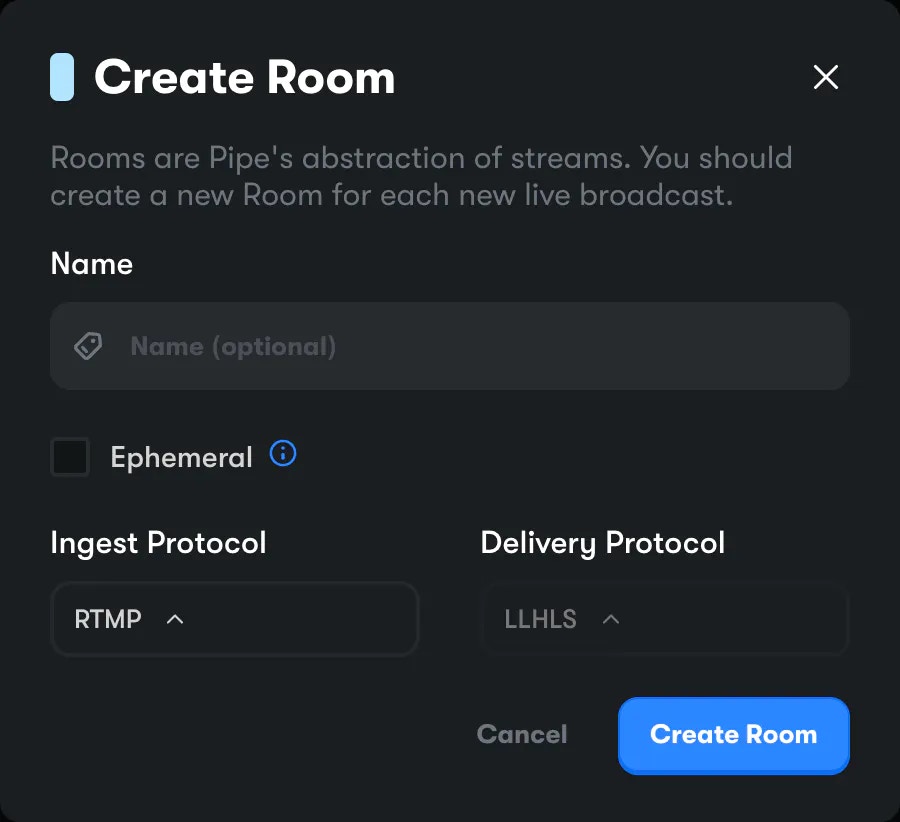 For this example, stick to **RTMP** for the ingest protocol and **LLHLS** for
delivery. You can optionally give the stream a name.
Click **Create Room**.
For this example, stick to **RTMP** for the ingest protocol and **LLHLS** for
delivery. You can optionally give the stream a name.
Click **Create Room**.
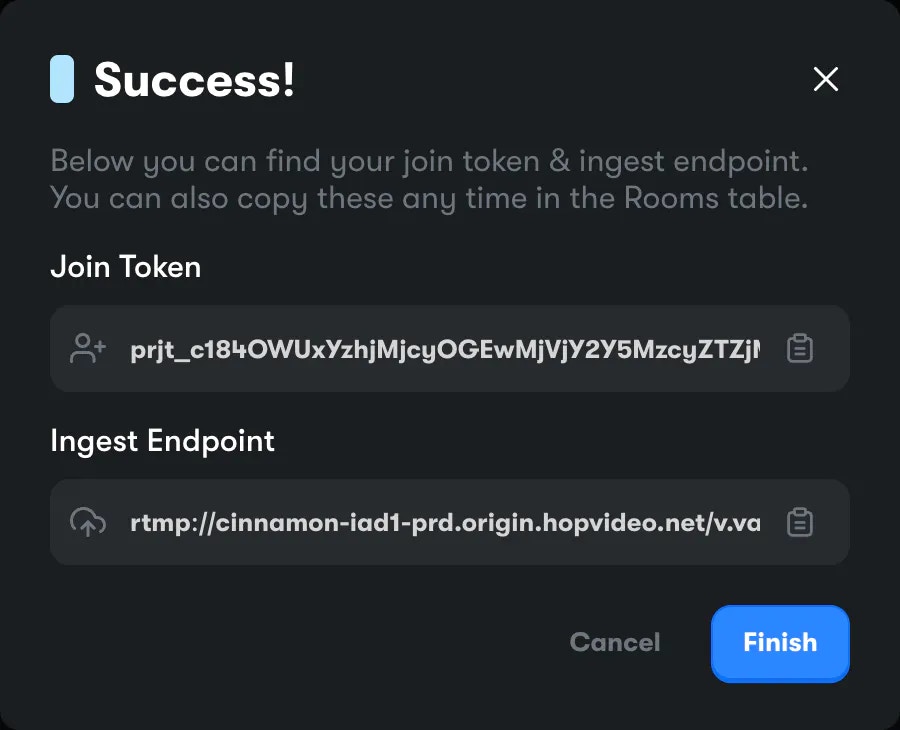 Use the
  button to copy the **Ingest Endpoint** to
your clipboard.
### Streaming via OBS
[OBS](https://obsproject.com/) allows you to quickly and easily set up a
livestream from your machine. Once downloaded, head over to the "Stream" tab in
the Settings page:
button to copy the **Ingest Endpoint** to
your clipboard.
### Streaming via OBS
[OBS](https://obsproject.com/) allows you to quickly and easily set up a
livestream from your machine. Once downloaded, head over to the "Stream" tab in
the Settings page:
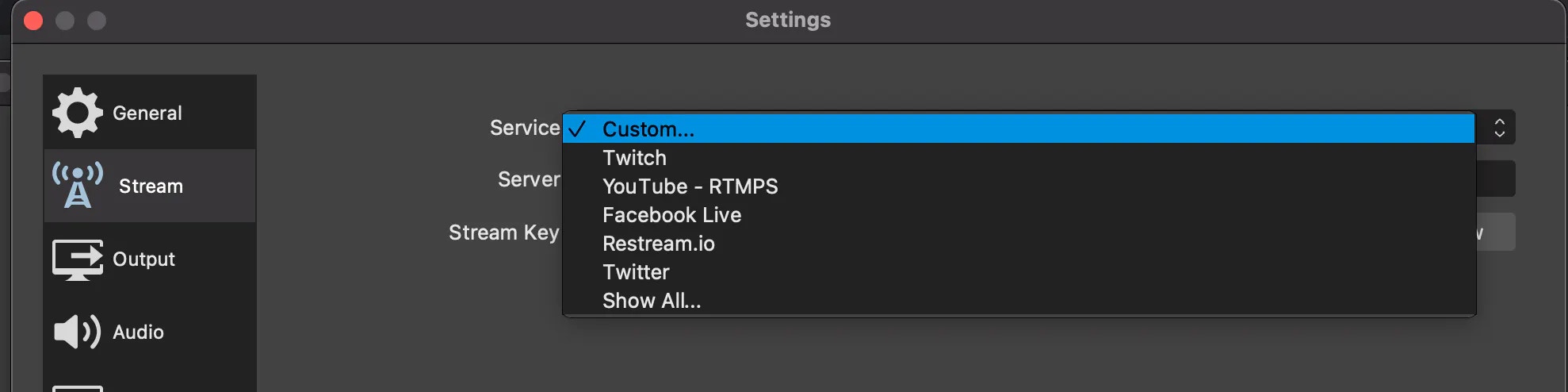 For **Service**, Select **Custom**.
Paste the Ingest Endpoint you copied above into the **Server** input. It'll look
something like this:
```
rtmp://cinnamon-iad1-prd.origin.hopvideo.net/v.vanilla/psk_c184ZTM2Y2Q3YzMxNDU3NjZjMmNkYmE5YzQzNTI2MThhOV8zMjUyOTM4ODQzNjc0MjE1Nw
```
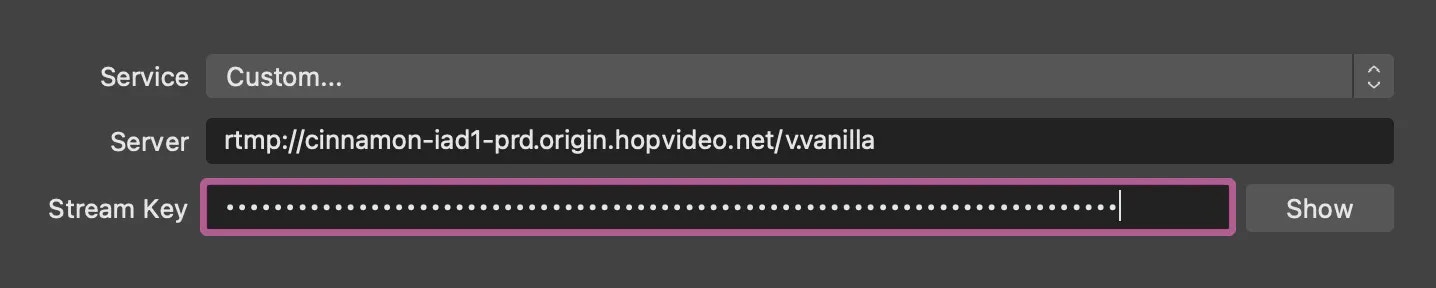
Copy the last segment (after the `/`) from the endpoint. This is technically
what OBS calls the "Stream Key". Paste it into **Stream Key** input, then delete
it from the **Server** input, along with the final `/`.
Once done, your Stream config should look something like this:
For **Service**, Select **Custom**.
Paste the Ingest Endpoint you copied above into the **Server** input. It'll look
something like this:
```
rtmp://cinnamon-iad1-prd.origin.hopvideo.net/v.vanilla/psk_c184ZTM2Y2Q3YzMxNDU3NjZjMmNkYmE5YzQzNTI2MThhOV8zMjUyOTM4ODQzNjc0MjE1Nw
```
Copy the last segment (after the `/`) from the endpoint. This is technically
what OBS calls the "Stream Key". Paste it into **Stream Key** input, then delete
it from the **Server** input, along with the final `/`.
Once done, your Stream config should look something like this:
 Click **OK**.
You can now hit the **Start Streaming** button. You're now streaming to Pipe!
## Advanced Mode
> This how-to guide is not complete. Please ask in
> [our Discord](https://discord.gg/hop) if you have any questions.
Before we get started, make sure you obtain a Project Token with "Manage Pipe"
permissions from the Console and use it to initialize the Hop SDK.
[How to Create Project Tokens](./tokens#creating-project-tokens)
Click **OK**.
You can now hit the **Start Streaming** button. You're now streaming to Pipe!
## Advanced Mode
> This how-to guide is not complete. Please ask in
> [our Discord](https://discord.gg/hop) if you have any questions.
Before we get started, make sure you obtain a Project Token with "Manage Pipe"
permissions from the Console and use it to initialize the Hop SDK.
[How to Create Project Tokens](./tokens#creating-project-tokens)