> ## Documentation Index
> Fetch the complete documentation index at: https://docs.hop.io/llms.txt
> Use this file to discover all available pages before exploring further.
# Images
> When creating a deployment, you can specify an image from a remote registry (such as Dockerhub or GCR), or you can use the Hop Image Registry
When using the `hop deploy` command or GitHub integration, you're using our
registry by default.
**Registry hostname**: `registry.hop.io`
## Pushing a Docker Image to the Hop Registry
You can push any OCI-compliant image (such as a Docker image) to the Hop
Registry. It's super easy, and will be available to use within your Hop project.
### Logging into the Registry
You'll need Docker installed on your machine to do this.
#### Obtain a Personal Access Token
To log in to the registry, you'll have to use a Hop PAT. They can be created
from [this page](https://console.hop.io/project/settings/tokens) on the console (User Settings ->
Personal Tokens).
Click on the "Create Token" button in the top right, optionally give it a name
such as "Hop Registry" and finally click **Create Token** within the modal.
It'll be created and will be shown in the PAT list:
 You can use the button to copy the token to your clipboard
#### Log into the Registry
Execute the following command:
```
docker login registry.hop.io
```
When prompted for your **username**, use your Hop email address.
When prompted for your **password**, use the PAT that you created in the
previous step.
```
➜ my_cool_project git:(main) docker login registry.hop.io
Username: phin@hop.io
Password:
Login Succeeded
```
### Build & Push the Image
When you build your Docker image, make sure you prefix the tag with
`registry.hop.io/`. For example, my project's namespace is
`test`, so I'll run the following command to build my container:
```
docker build -t registry.hop.io/test/my-cool-project:latest
```
If you don't know your project's namespace, you can find it on [this
page](https://console.hop.io/auth)
Once the image is built, I'll push my image to the Hop Registry with the
following command:
```
docker push registry.hop.io/test/my-cool-project
```
### View the Image
Once your image is pushed, you can view it on the
[Images tab](https://console.hop.io/auth) of Ignite:
You can use the button to copy the token to your clipboard
#### Log into the Registry
Execute the following command:
```
docker login registry.hop.io
```
When prompted for your **username**, use your Hop email address.
When prompted for your **password**, use the PAT that you created in the
previous step.
```
➜ my_cool_project git:(main) docker login registry.hop.io
Username: phin@hop.io
Password:
Login Succeeded
```
### Build & Push the Image
When you build your Docker image, make sure you prefix the tag with
`registry.hop.io/`. For example, my project's namespace is
`test`, so I'll run the following command to build my container:
```
docker build -t registry.hop.io/test/my-cool-project:latest
```
If you don't know your project's namespace, you can find it on [this
page](https://console.hop.io/auth)
Once the image is built, I'll push my image to the Hop Registry with the
following command:
```
docker push registry.hop.io/test/my-cool-project
```
### View the Image
Once your image is pushed, you can view it on the
[Images tab](https://console.hop.io/auth) of Ignite:
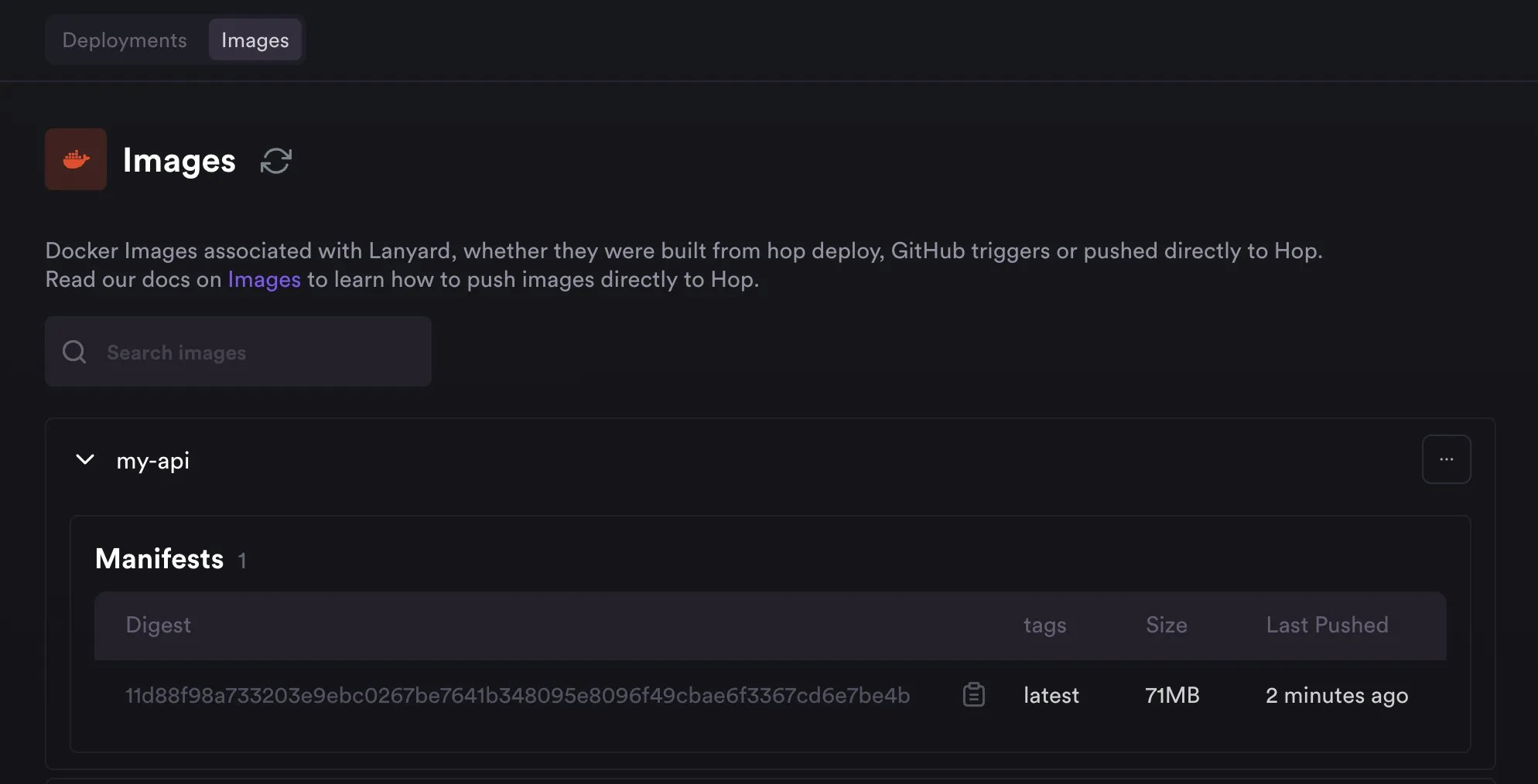 That's it! Your image is now ready to use on Hop. You can use the 3 dots in the
top right of the image card to create a deployment directly from the image.
That's it! Your image is now ready to use on Hop. You can use the 3 dots in the
top right of the image card to create a deployment directly from the image.