> ## Documentation Index
> Fetch the complete documentation index at: https://docs.hop.io/llms.txt
> Use this file to discover all available pages before exploring further.
# Gateways
> Gateways allow you to expose your Hop deployments to your project or the internet
There are 2 types of gateways: Internal or External. External gateways expose
your deployment to the internet under a protocol of your choice, e.g. HTTP.
Internal gateways expose your deployment to your project by giving you an IP
address and customizable internal domain to use.
Currently, both gateway types
[round-robin](https://en.wikipedia.org/wiki/Load_balancing_\(computing\)#Round-robin_scheduling)
requests between containers. In the future, there will be more fine grained
controls for load balancing requests.
## Creating a Gateway
You can create a gateway using the Hop Console or the Hop CLI.
1. Navigate to the Gateways tab in an Ignite deployment:
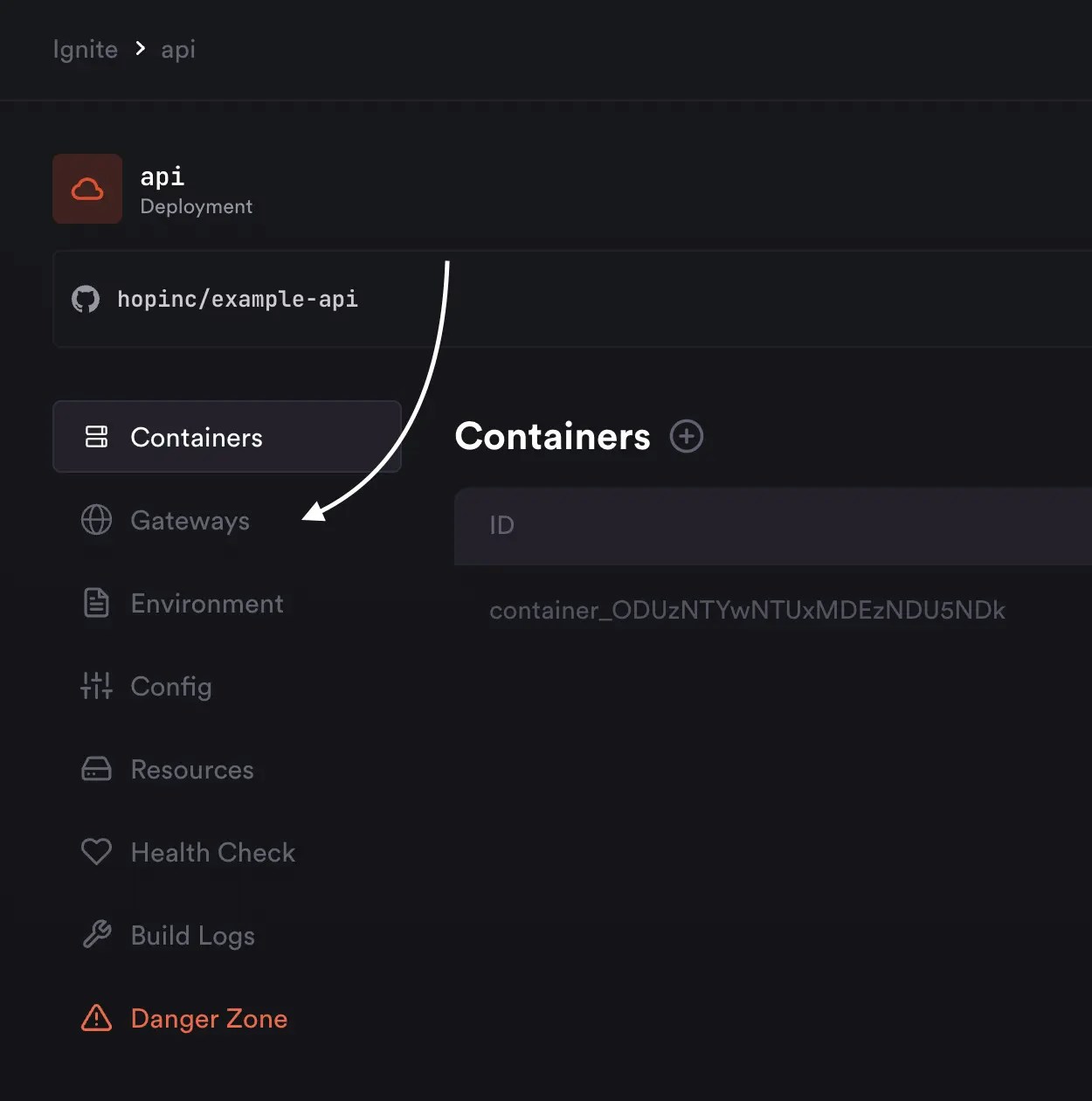 2. Click on the "Create Gateway" button in the top right:
 3. You will be presented with a modal:
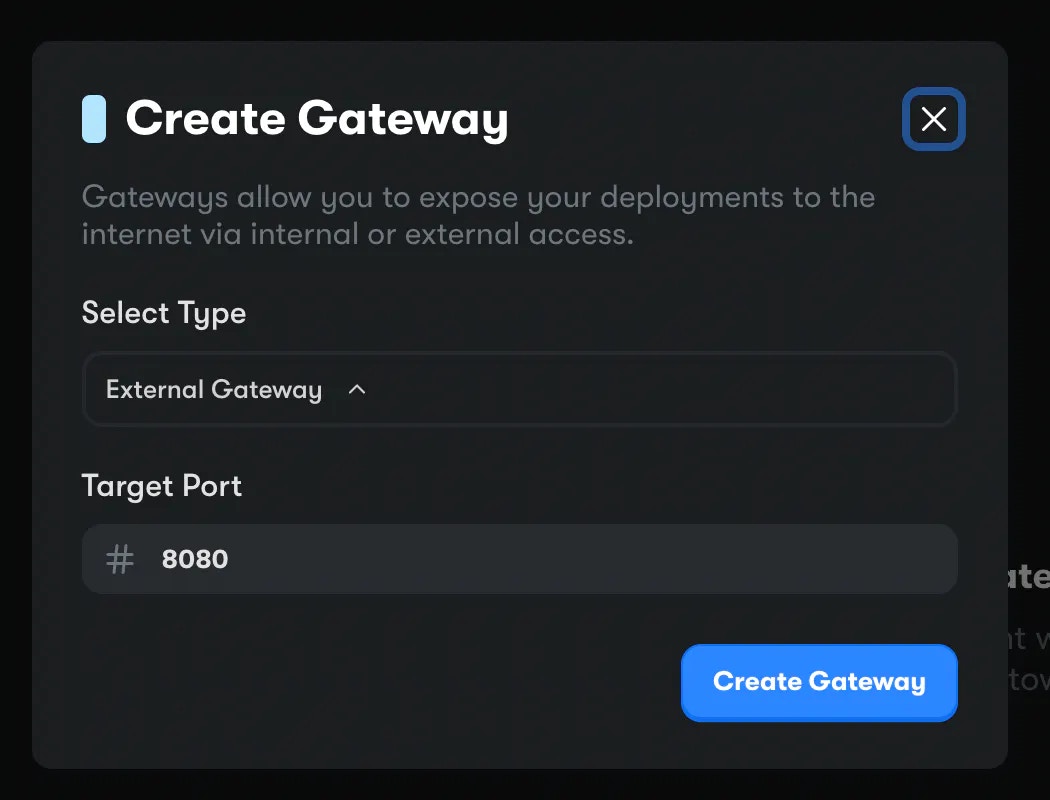 Here, you can select the gateway type and target port.
Gateway type can be either:
* External, or
* Internal
At the moment, external gateways only support HTTP(S), so there's no option to
select the protocol yet.
The target port should be the port your app listens on. The gateway will load
balance requests between containers on the target port. HTTP gateways will
automatically handle external HTTP and HTTPS termination on the correct ports
(80 & 443), so you don't need to run your application on these ports.
4. Click **Create Gateway**.
To create a gateway interactively, run the following command:
```bash theme={null}
hop gateways create [--project ]
```
This will take you through the steps to set up a gateway on a deployment.
You can also create a gateway non-interactively by passing the following flags:
```sh theme={null}
hop gateways create \
--type \
--target-port \
--project [namespace]
```
## Adding Custom Domains
By default, every external gateway gets assigned it's own `.hop.sh` domain,
generated using the deployment name. You have the choice to update this
subdomain to something not taken already, or you can add your own custom
domains.
1. Head over to the "Domains" page inside your gateway.
Here, you can select the gateway type and target port.
Gateway type can be either:
* External, or
* Internal
At the moment, external gateways only support HTTP(S), so there's no option to
select the protocol yet.
The target port should be the port your app listens on. The gateway will load
balance requests between containers on the target port. HTTP gateways will
automatically handle external HTTP and HTTPS termination on the correct ports
(80 & 443), so you don't need to run your application on these ports.
4. Click **Create Gateway**.
To create a gateway interactively, run the following command:
```bash theme={null}
hop gateways create [--project ]
```
This will take you through the steps to set up a gateway on a deployment.
You can also create a gateway non-interactively by passing the following flags:
```sh theme={null}
hop gateways create \
--type \
--target-port \
--project [namespace]
```
## Adding Custom Domains
By default, every external gateway gets assigned it's own `.hop.sh` domain,
generated using the deployment name. You have the choice to update this
subdomain to something not taken already, or you can add your own custom
domains.
1. Head over to the "Domains" page inside your gateway.
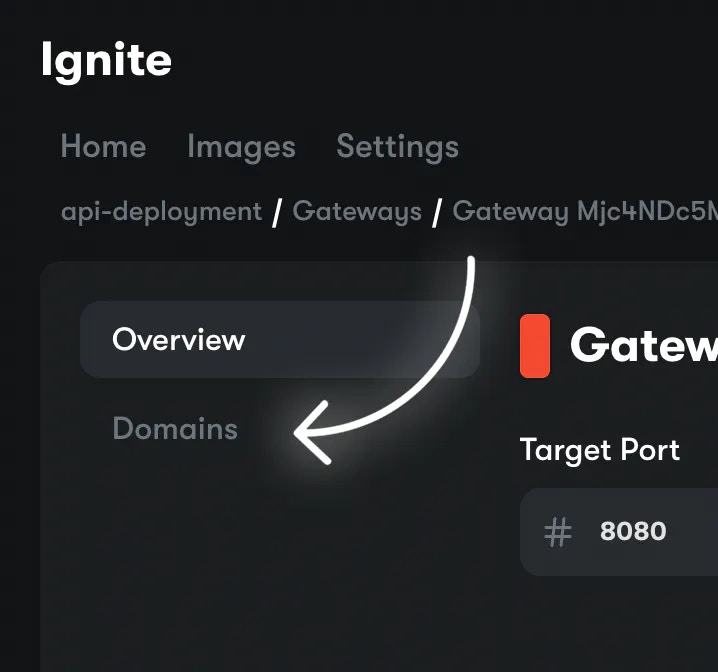 2. Here, you can manage the `.hop.sh` domain as well as add your own custom ones.
To add a custom domain, click on the Attach Domain button in the top right of
the page.
3. You will be presented with this modal, where you should enter your desired
domain.
2. Here, you can manage the `.hop.sh` domain as well as add your own custom ones.
To add a custom domain, click on the Attach Domain button in the top right of
the page.
3. You will be presented with this modal, where you should enter your desired
domain.
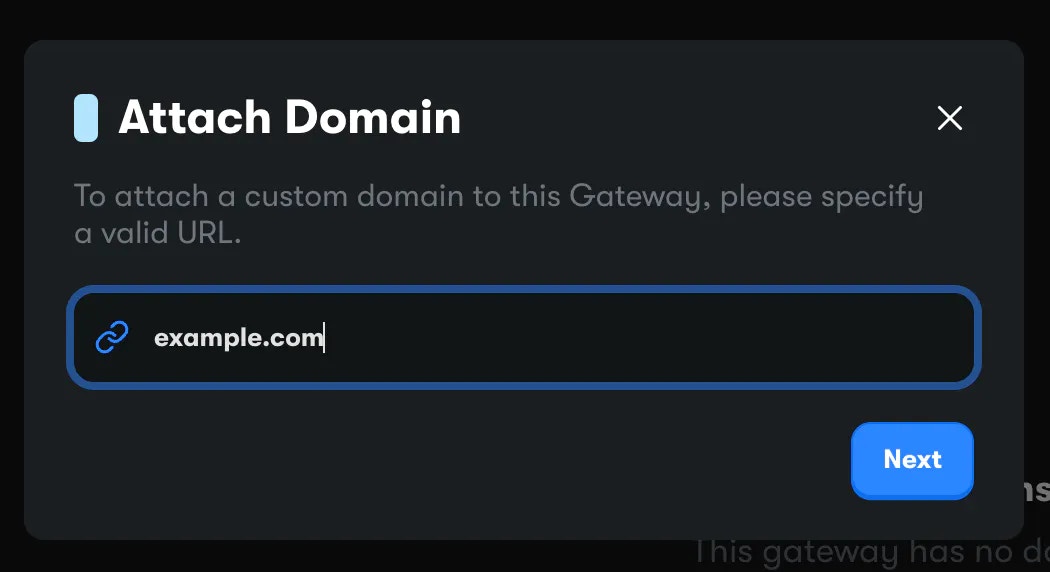 4. Click **Next**.
After this, you will be required to create a CNAME record for your previously
entered domain pointing to Hop.
5. Details about this record will be shown on screen in a modal after entering the domain. You should add this record to your DNS provider.
```sh theme={null}
hop domains attach [gateway] [domain]
```
## Headers
When HTTP requests are sent to your services, they are proxied through our edge network where we append the following headers onto the final request.
### Request Headers
| Header | Description |
| ------------------------ | ------------------------------------------------------------------------------------------------------- |
| `x-forwarded-for ` | The IP of the client that made the request as it hits our network |
| `hop-edge-node` | The node the gateway that proxied your request lives on |
| `hop-region` | The region the gateway service lives on |
| `hop-gateway-id` | The ID of your deployment's gateway the request is going through. This will be prefixed with `gateway_` |
| `hop-connecting-country` | The country code of the client that made the request |
| `hop-connecting-ip` | The IP of the connecting client |
| `x-real-ip` | The IP of the originating client |
### Response Headers
| Header | Description |
| --------------- | ------------------------------------------------------------ |
| `hop-edge-node` | The node the gateway that proxied your request lives on |
| `hop-region` | The region the gateway service lives on |
| `server` | Indicating the response is from Hop, the value will be `hop` |
4. Click **Next**.
After this, you will be required to create a CNAME record for your previously
entered domain pointing to Hop.
5. Details about this record will be shown on screen in a modal after entering the domain. You should add this record to your DNS provider.
```sh theme={null}
hop domains attach [gateway] [domain]
```
## Headers
When HTTP requests are sent to your services, they are proxied through our edge network where we append the following headers onto the final request.
### Request Headers
| Header | Description |
| ------------------------ | ------------------------------------------------------------------------------------------------------- |
| `x-forwarded-for ` | The IP of the client that made the request as it hits our network |
| `hop-edge-node` | The node the gateway that proxied your request lives on |
| `hop-region` | The region the gateway service lives on |
| `hop-gateway-id` | The ID of your deployment's gateway the request is going through. This will be prefixed with `gateway_` |
| `hop-connecting-country` | The country code of the client that made the request |
| `hop-connecting-ip` | The IP of the connecting client |
| `x-real-ip` | The IP of the originating client |
### Response Headers
| Header | Description |
| --------------- | ------------------------------------------------------------ |
| `hop-edge-node` | The node the gateway that proxied your request lives on |
| `hop-region` | The region the gateway service lives on |
| `server` | Indicating the response is from Hop, the value will be `hop` |