> ## Documentation Index
> Fetch the complete documentation index at: https://docs.hop.io/llms.txt
> Use this file to discover all available pages before exploring further.
# Deploying to Hop
> Any application of any size, language or framework can be deployed to Hop. Deployments are Ignite's primary abstraction - containers run inside them
When deploying to Hop, we use a tool called Nixpacks to automatically infer your environment and build a container image for your application. However, you can also use your own `Dockerfile` to build your image. If we detect a `Dockerfile` in your project directory, we'll use that instead of Nixpacks.
## Deployment Methods
There are various ways to deploy applications to Hop.
### GitHub
Deploying to Hop from GitHub allows you to easily connect a GitHub repository to
Ignite and have your project be automatically deployed when you push to your
main branch.
To deploy from GitHub, we will use the
[Hop Console](https://console.hop.io/auth)
#### Creating the Deployment
Select "Create Deployment" under the **Ignite** page, or, alternatively use the Cmd+K menu and search **GitHub**.
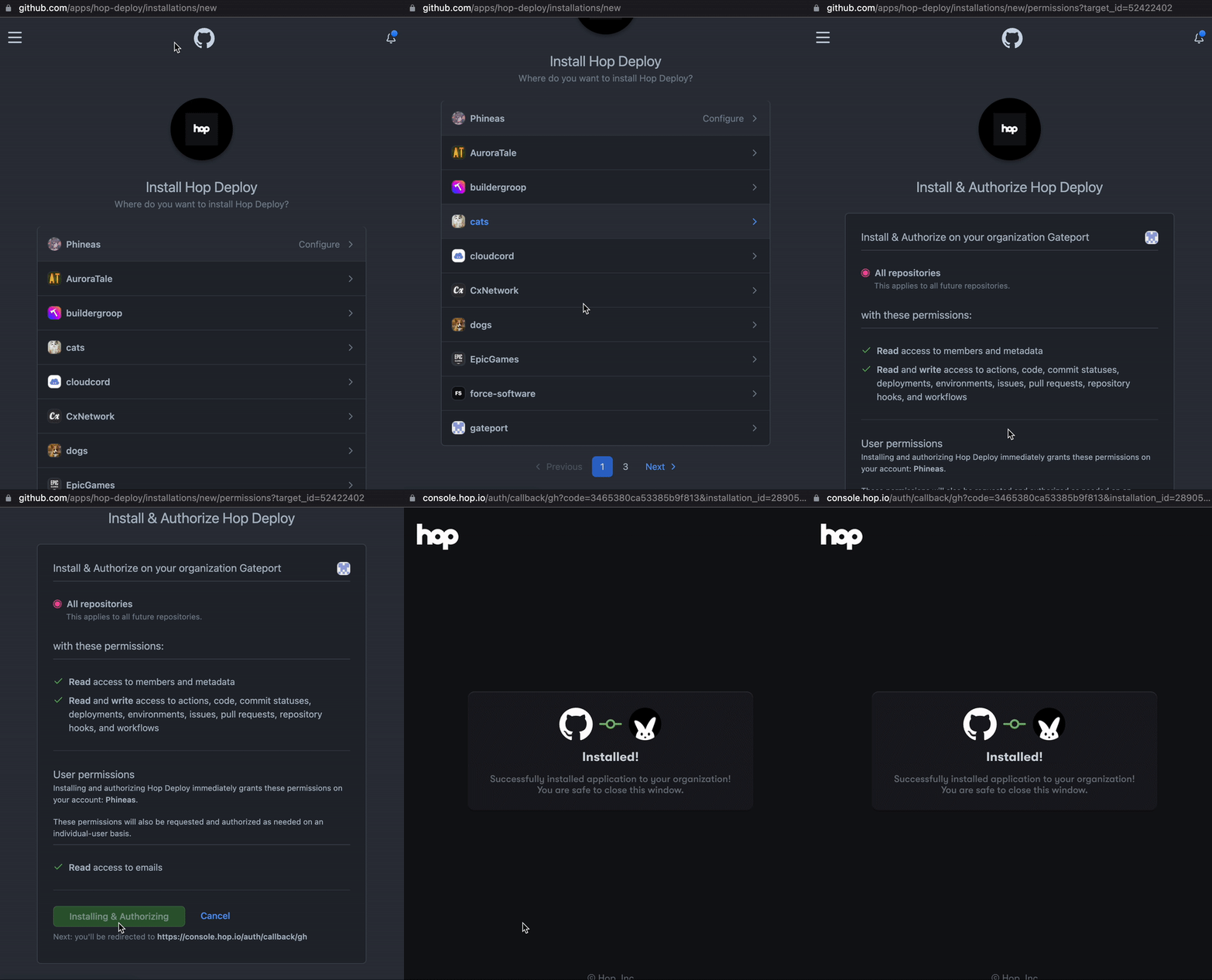
#### Linking GitHub Account
You will now be prompted to link your GitHub account to Hop. Once connected, you
can give Hop permission to all or individual repositories on your account.
Once permission is granted, you can select the repository to use and create the
deployment. Once created, the first build for your application will start. You
can view the build logs in realtime through the console - when it's built, it'll
create a container to start serving your deployment.
#### Pushing Updates to your Deployment
To push an update to a GitHub deployment, simply `git push` to the main branch.
Hop will automatically detect this push and will begin building the new release.
Once built, Hop will create a rollout: create containers for the new build and
delete the old ones once the new ones are running.
### Hop CLI
The easiest way to deploy a project directory is to use the
[Hop CLI](/cli/overview).
#### Installation
Follow the [install guide](/cli/overview/#install) to install the CLI on your
machine.
#### Deploying
Once installed and logged into the CLI, you can navigate to your project
directory in your terminal and use `hop deploy`.
```
hop deploy
```
If this is the first time deploying this project to Hop, the CLI will walk you
through creating a new deployment before finally building and deploying your
project. You can also
[link existing deployments to directories](/ignite/deploying#linking-a-project-directory-to-an-existing-deployment).
#### Pushing Updates
If you need to deploy an update, just run `hop deploy` again and it'll take care
of the rest, including smoothly rolling out new containers to guarantee uptime.
#### Rolling Back
If you accidentally pushed out a bad update, you can use the following command
to roll back to the previous deployment.
```
hop oops
```
#### Linking a Project Directory to an Existing Deployment
If you've already created a deployment on Hop and want to link a project directory to that deployment, you
can use:
```
hop link [deployment_id]
```
If a deployment ID isn't specified, then you will be given a list of your
deployments to select from.
## Deployment Options
When creating a deployment, you are able to configure various options to customize how your application runs. All of these options can be updated after the deployment is created, too.
### Resources
The resources section allows you to configure the compute resources your that each container which runs within your deployment will be allocated (vCPU, memory and disk space). Hop has 4 presets which you can choose from to quickly set your resources. You can also configure the resources manually by selecting **Custom Resources** and setting the values yourself.
### Volume Settings
If you select the **Add volume to deployment** checkbox, you're able to configure the size and mount path of the volume that will be attached to your deployment. Please note that by selecting this option, your deployment will become **Stateful**. Stateful deployments may currently only run one container at a time.
#### File system
You can choose between two file systems for your volume: `ext4` and `xfs`. In general, XFS is better at handling large files, while Ext4 is more is more performant when handling a lot of small files. XFS is usually recommended for running databases. Please see [this article by Red Hat](https://access.redhat.com/articles/3129891) for more information.
### Environment Variables
You can add environment variables through our GUI, plain text editor and JSON editor. Once set, your environment variables will be made available to your application during build time and runtime.
You can also point environment variables to [project secrets](/ignite/project-secrets). If using the GUI, you can select a secret from the dropdown. If using a text editor, API or CLI, you can use the following syntax:
```
${SECRETS.MY_SECRET}
```
### Advanced Options
You should only modify these options if you understand how the Dockerfile is built for the image you're trying to deploy.
#### Ephemeral containers
You cannot use Ephemeral containers with Stateful deployments (volumes).
Enable **Use ephemeral containers** to run your deployment with ephemeral containers. Ephemeral containers are deleted immediately once they exit. This is useful for running one-off tasks such as database migrations. Your deployment can run an unlimited number of ephemeral containers at a time - you can use our API to create them dynamically.
#### Entrypoint & CMD Override
You can override the entrypoint or CMD of your containers within the scope of a deployment.
The **entrypoint** is the base command that is run when the container starts. The **CMD** is the default arguments to pass to the entrypoint. An entrypoint is always needed, and if not provided, is inherited from the base image.
 Once permission is granted, you can select the repository to use and create the
deployment. Once created, the first build for your application will start. You
can view the build logs in realtime through the console - when it's built, it'll
create a container to start serving your deployment.
#### Pushing Updates to your Deployment
To push an update to a GitHub deployment, simply `git push` to the main branch.
Hop will automatically detect this push and will begin building the new release.
Once built, Hop will create a rollout: create containers for the new build and
delete the old ones once the new ones are running.
Once permission is granted, you can select the repository to use and create the
deployment. Once created, the first build for your application will start. You
can view the build logs in realtime through the console - when it's built, it'll
create a container to start serving your deployment.
#### Pushing Updates to your Deployment
To push an update to a GitHub deployment, simply `git push` to the main branch.
Hop will automatically detect this push and will begin building the new release.
Once built, Hop will create a rollout: create containers for the new build and
delete the old ones once the new ones are running.